Agency client management: the playbook from pitch to handover
Package client pages as a service, give each client a workspace and the right roles, run approvals and reports, avoid mix-ups and hand the work over cleanly.
7 bab18 menit baca
The prospect likes everything in your proposal until the last page, where she asks the question that decides whether she signs: "And if we stop working with you, what do we keep?" A vague answer about passwords loses the room. A precise one wins it: "The page, its address, its audience list and its history move to your own account, and our access ends the day you accept."
Link pages sit in an awkward corner of agency work. They're too small to scope like a website and too public to treat as a favor, so they tend to become unbilled extras: set up during onboarding, edited from a shared login, reported on by nobody and left behind when the contract ends. Across a dozen clients, that's a dozen small liabilities with your name on them.
This playbook turns the work into a service with a beginning, a middle and an end. It's for social media, marketing and design agencies, and for freelancers who look after several clients, and it follows one engagement from the proposal to the day the client takes the keys.
What you'll learn
- Package link-page work as a named service, with deliverables a client can sign off
- Give every client a workspace, and every person on both sides the right access
- Build pages from a brief and run approvals that end in a written yes
- Send reports clients read, and say honestly where the numbers stop
- Keep many clients' pages correct with a weekly routine and a few hard guards
- Hand a workspace over cleanly, and price the work so it pays
How to package link-page work as a service clients buy
"We'll manage your link in bio" sounds like a chore, and clients pay for chores reluctantly. "A page that sends your followers to bookings, the menu and the newsletter, kept current every week and reported on every month" sounds like a service. The difference is that the second one names outcomes and a rhythm.
Split it into setup, care and campaigns
A service that holds up in a contract usually has three parts:
- Setup: discovery, the build in the client's brand, review rounds, launch, the search title and share image, and a styled QR code for their print.
- Care: an allowance of changes each month, fixes for anything page health flags, and a monthly report with a short note.
- Campaigns: a sprint around a launch, a sale, an event or an appeal, with its own blocks, a start and end date, tagged links for each channel and a wrap-up report.
Some clients only need setup: a dentist whose links change twice a year can run the page alone after launch. Clients who post every day need care, because an unattended page decays. Links break when a shop renames a product, last month's offer lingers, and the page ends up arguing with the posts that send people to it.
Write the deliverables down
| Part | You deliver | The client provides |
|---|---|---|
| Setup | A page in their brand, two review rounds, launch, search and share settings, a QR code | Logo, colors, photos, the final links, one named approver |
| Care | An agreed number of changes a month, link fixes, a scheduled report and a monthly note | Requests in one agreed channel |
| Campaign | Campaign blocks or a tab, scheduled start and end, tagged links, a wrap-up report | Dates, offer details, the checkout or ticket links |
The right-hand column matters as much as the left. This kind of project stalls while you wait for a logo file or a final list of links, and a written list of what the client owes you turns "we're waiting on you" from an awkward email into a line in the contract.
Say what isn't included
Be explicit about the edges, because the page makes some things look closer than they are. A Linkbase page shows buttons that open the client's own checkout, payment link or booking system. It doesn't process payments, run a store with stock levels or send newsletters. If the client needs a full online store, the page points to it, and building that store is a separate project with a separate quote. Writing their emails, shooting their photos and running their ads are separate lines too.
A worked example
Say you run a two-person studio in Montreal that works mostly with restaurants. Your setup package is one page with a menu block in sections, opening hours with a note for holiday closures, a map, and a button to the reservation service the restaurant already uses. The page carries French and English side by side. Linkbase never translates a client's words, so you write both versions and the owner approves both. Care covers seasonal menu changes and holiday hours, with a monthly report in French to the owner. The summer terrace opening is sold as a campaign.
Setting up workspaces and access for every client
Access is where agency work gets risky. A former freelancer who can still edit a client's page, or a client who can see another client's numbers, is the kind of mistake that ends relationships. Set it up properly once, per client, and it stays correct.
Draw each workspace's boundary at the contract
Give each client a workspace of their own, where "client" means whoever signs your contract. A restaurant group with three locations is one client: one workspace, three pages. Two sister brands with separate contracts get two workspaces, even if the same person runs both.
The test is the exit. If this client leaves, can you hand their workspace over whole, without taking anything that belongs to someone else? Members, scheduled reports, the audience list, domains and handovers all work per workspace, so a workspace shared by two clients can't be split later. Create and switch workspaces shows what a workspace holds.
Invite your own people once
On the Team plan, your agency team joins your account from the Team page, instead of being invited to each workspace in turn:
- Account admins are admins in every workspace they reach. With All workspaces access, that includes workspaces you create later. Give this to anyone who must be able to cover any client on any day.
- Members work as editors or viewers in the workspaces you choose. This suits specialists and freelancers.
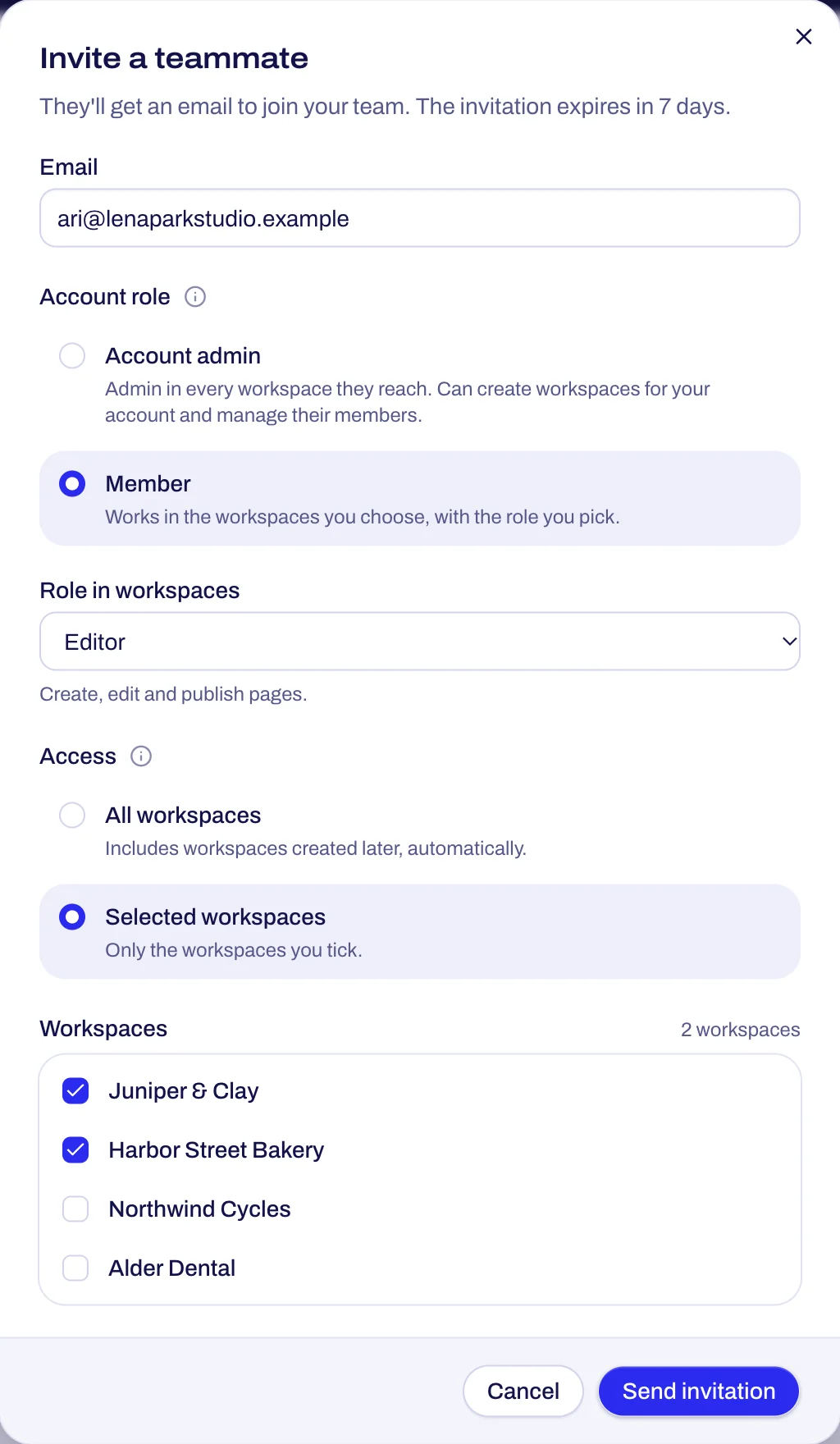
Each teammate takes one seat, however many workspaces they reach. When a freelancer's contract ends, removing them on the Team page ends their access to every workspace in one step. Set up your agency team has the clicks.
Write an access plan for each client
At onboarding, write a few lines per person on the client's side. Say you look after a chain of four climbing gyms in Monterrey:
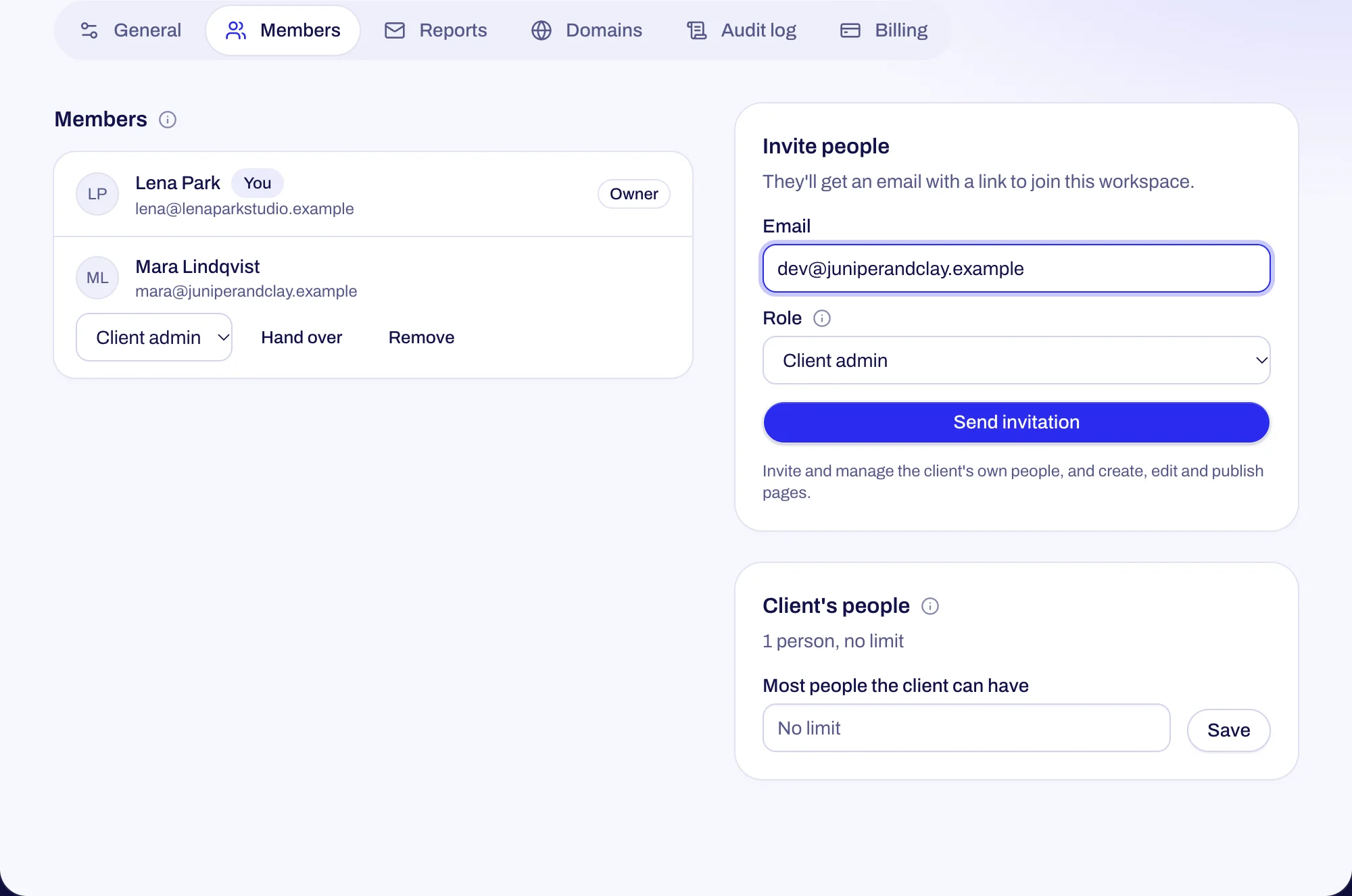
- The marketing lead is a client admin. She invites and removes the client's own people, so "can you add my colleague?" stops being your job.
- Each gym manager is an editor limited to their own gym's page (limiting pages is on the Team plan). They post the week's schedule changes and can't touch the other three pages.
- The founder is a viewer. He sees the pages and the numbers whenever he likes, and it costs nothing.
- A cap on the client's people. You set the most people the client can have. Client admins can't invite past it, and you can.
A client admin can edit and publish pages and manage the client's people, but can't delete pages, change domains, webhooks or settings, see billing or schedule reports. That's the right split for most engagements: the client runs their content and their people, and you keep the plumbing. Give a client their own admin lists every permission.
Treat seats as a cost line
Editors and client admins take seats on your plan. The client's viewers are free. So the access plan doubles as a cost estimate: four gym managers and a marketing lead are five seats you pay for. Decide in the proposal whether those are included in your fee or billed on top, and give viewer access to everyone who only needs to look.
Lock the accounts that reach everything
An account admin can reach every client you have. Ask everyone on your team to sign in with a passkey or turn on two-factor sign-in; our guide to passkeys and two-factor sign-in explains both. And never share one login between people. With named accounts, version history and the audit log can tell you who changed what.
Building and approving pages without endless rounds
Approval rounds are where agency hours go missing. Much of the waste comes from building before anyone agreed what the page is for, then discovering the disagreement in round three.
Start with a five-question brief
Before you open the editor, get these answered in writing:
- What's the one thing most visitors should do here? Book, buy, call, sign up or donate. This sets the order of the page.
- Who are the visitors, and which languages do they read?
- Which links are permanent, and which are seasonal? Seasonal ones get dates.
- What's the brand? Logo, colors, fonts, and photos you're allowed to use.
- Who approves, and who else must see it before launch?
Question two settles the page language setting. The default, "Each visitor's language", shows the labels Linkbase adds, such as form messages and dates, in each visitor's own language. A fixed language tells search engines and screen readers what the page is written in, but shows those labels in that language for everyone. The client's own words are never translated, so a bilingual page means someone writes both versions. Write your page in more than one language shows the options.
Build from something, not from nothing
You rarely need a blank page:
- The client's old link page. Paste its address and Linkbase brings over the public links, social profiles and profile image as a draft to tidy. Our guide to switching link-in-bio tools covers the move without losing visitors.
- Your own best build for the trade. Duplicate it into the client's workspace. The copy is a draft, and it brings everything, including tracking pixel IDs and gate passwords, so replace the previous client's details before anything else.
- A template for the trade, from the templates page.
Then make it look like the client. Our guide to a theme that fits the brand works through colors, buttons and fonts, and for sister brands you can copy a theme from one page to another.
Run approvals that end in a written yes
A draft preview is a private link to the latest saved changes, with no sign-in, lasting 1, 7 or 30 days. Choose the shortest time that works, and once the review is done, select Stop sharing beside the link under Shared links in Share preview. The reviewer always sees your newest saved edits, so tell them when the draft is ready rather than sending the link mid-build. Our guide to draft preview links has a review request you can adapt.
Three rules make approvals end:
- One named approver per client, written into the contract. Everyone else comments through them.
- A fixed number of review rounds in the setup package. The fourth round becomes a scope conversation, not a favor.
- A written yes before you publish. An email saying "approved" is enough. Version history then records who published each version and when, and can roll back if the approved version had a mistake.
Test what a preview can't
A preview doesn't send forms or signups, open locked links or take bookings. So the final check happens after you publish: on a phone, on mobile data, send a test form reply, sign up with a test address, tap every checkout and payment button through to the payment page, and scan the QR code. Then delete the test entries from the audience list, so the client's first export isn't full of you.
Reporting results clients understand
A report that lists every number teaches the client nothing, and a client who learns nothing from your reports starts wondering what the care fee buys.
Report the job, not the dashboard
Tie the report to question one of the brief. For the Montreal restaurant, that's clicks on the menu and the reservation button; for a photographer, it's the inquiry form. Three lines cover it:
- Reach: views and unique visitors, and where they came from: sites, apps, countries and devices.
- Action: clicks on the two or three links that matter, and each link's click rate.
- Change: what you changed this month, and what happened after.
Let the numbers send themselves, and write the paragraph
On Pro and Team plans, a scheduled report emails the numbers for one page or a whole workspace, weekly or monthly, to up to ten addresses, in the language you choose. Recipients don't need an account. Reports go out at 9:00 in the workspace's time zone, so set the client's time zone in the workspace settings first. Each one shows views, unique visitors, clicks and click rate against the period before, plus the top links and referrers.
The numbers arrive on their own. What the client pays you for is the paragraph that goes with them: what moved, why you think it moved, and what you'll change. Say your Cape Town agency looks after a wine estate's page. A useful note reads: "Visits rose in the week of the harvest festival post, nearly all from Instagram. The tasting booking button held its click rate. Hardly anyone tapped the new shuttle information, so we'll move it into the FAQ."
Clients who want to look for themselves can be viewers, free, with live numbers at any time. Our guide to the weekly analytics email suggests a five-minute routine you can teach them.
Show which campaign worked
Give every channel its own tagged link, with utm_source, utm_medium and utm_campaign, and Linkbase reads them into the Campaigns card. On Pro and Team plans, attribution shows views and clicks for each source, medium and campaign side by side. For print, a short link per placement, each with its own QR code, gives every poster its own scan count (short links are on Pro and Team plans). Keep one naming system across clients, lowercase with hyphens, because tags are case-sensitive. Track campaigns with UTM tags explains the rules.
Say where the trail ends
Linkbase counts the tap on Buy or Book a table, not the sale. Whether the visitor paid lives in the client's shop or payment provider. Never report clicks as revenue: put your click counts next to the client's own sales report and let them see both.
For clients who run ads, tracking pixels on Pro and Team plans load only after a visitor agrees; our guide to setting up Meta Pixel, GA4 and Tag Manager walks through it. The built-in analytics use no cookies and store no IP addresses, which is a reassuring starting point for clients in the UK and EU; our guide to privacy-friendly analytics explains where consent still comes in.
Running many clients without mistakes
With three clients, you remember everything. With twenty, you need a routine, because the mistakes that hurt agencies are rarely hard problems. They're small ones nobody noticed.
Start every week on All workspaces
All workspaces lists every client's workspace in one place: its live pages, its views and clicks over the last 30 days, its people, and what needs attention, sorted from most to least urgent: unsafe links, broken links, a client at their people limit, pages that aren't live, and pages with unpublished changes.
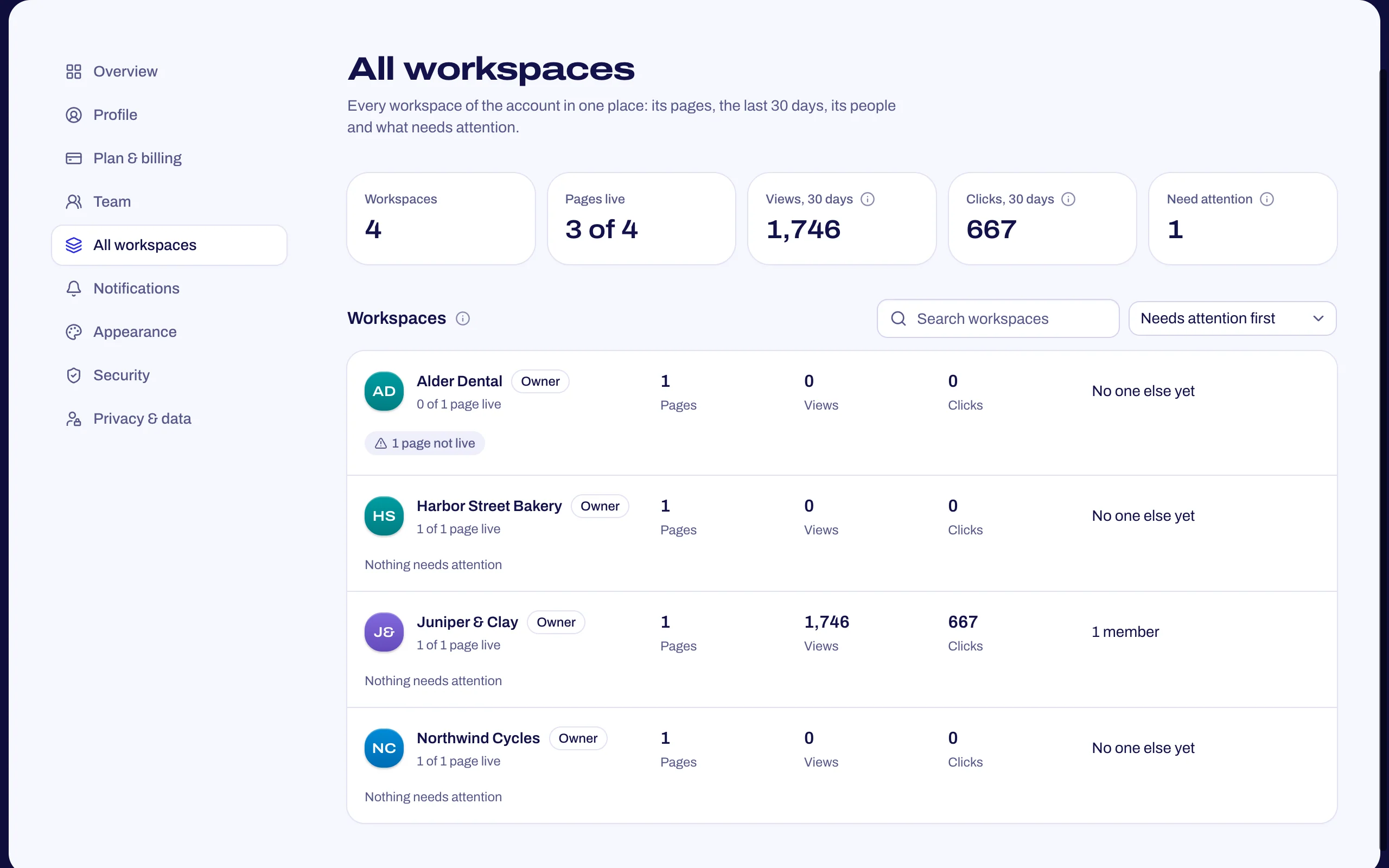
Make it the first screen of the week and work from the top. Unpublished changes deserve a look every time. Either someone forgot to publish, or the client thinks a change is live when it isn't.
The mistakes that happen, and the guard for each
| Mistake | How it happens | The guard |
|---|---|---|
| The last client's details on a new page | A duplicate copies everything, pixel IDs included | A replace list before first publish: name, bio, links, contacts, pixels, gates |
| A campaign link outlives the campaign | Nobody remembers to take it down | Schedule the block with an end date (Pro and Team) |
| A broken checkout button | The client's shop renamed a product | Page health checks links daily: fix flags the same day |
| An edit in the wrong client's workspace | Two clients with similar names | A profile image per workspace, and a glance at the sidebar before you publish |
| "Who moved this button?" | Several hands on one page | Version history for the page, the audit log for the workspace |
| A former freelancer still has access | The contract ended, the access didn't | Remove them on the Team page on their last day |
Page health catches what a machine can see. It can't see a link that works but points to the wrong thing, such as last season's menu, so read every client's page top to bottom once a month, on a phone, as a visitor would.
Name things so nobody guesses
- Workspaces: the client's trading name, exactly as it appears on your invoices.
- Pages: the brand, then the location or purpose: "Cumbre Climbing, San Pedro".
- Tags: the same lowercase sources for every client:
instagram,tiktok,newsletter,poster.
A Kraków design studio with two clients called "Nova" learns this once.
Keep the small notes inside the dashboard
Message the client, on a workspace's Members page, sends a note of up to 500 characters to the client's admins, or to all of the client's people if you tick the box. It lands in their notification bell, and it's recorded in the audit log. No email goes out, so use it for "The holiday hours are live", and keep anything urgent, or anything that needs an answer, in email. Notifications and messaging a client has the details.
Handing a workspace over cleanly when the work ends
The handover is the last impression you leave. Done well, it's also a reference in the making, because the client leaves with everything they paid for and nothing broken.
Agree the exit before the start
Put a short clause in every contract: when the engagement ends, you offer the client their workspace; they accept it on their own Linkbase plan; your access ends when they accept; they can invite you back. Two more decisions belong in the same clause:
- The custom domain should be registered in the client's name from day one, with you given access to its DNS settings. A domain the agency owns is a hostage, even if nobody means it that way.
- The logo at the foot of the page. If it carries your agency's credit, say whether it stays after handover. Our guide to white-label client pages covers the three sensible answers.
What moves, and what doesn't
When the client accepts, they become the owner and the workspace moves to their plan. The pages, audience, analytics, domains and settings stay with the workspace. The client's own people stay, with their roles. You, and everyone who reached it through your agency team, leave at once, and it can't be undone.
A few details catch agencies out:
- Pages you duplicated into the client's workspace carry their own images. Duplicating into another workspace copies the page's images, videos and audio into that workspace's media library, so nothing relies on a library you keep. Copies made inside the client's workspace share its library.
- The verified badge belongs to the page, so it stays when the page changes hands.
- Printed QR codes keep working. A page's QR code belongs to the page, so it keeps working wherever the page lives.
Run the handover in order
- Tidy the page. Remove expired campaign links, clear page health, and check the search title and share image.
- Make sure the new owner is a member. If they aren't, invite them as a client admin and wait until they've joined.
- Keep your copy. Only the owner can download the workspace's data, so do it now if you need records.
- Explain the plan. If the client has a plan, the workspace moves to it. If they have none, accepting starts a free trial of the workspace's plan, no card needed, and the links stay online. If they've already used that plan's trial, they choose a plan first, and you keep paying until they do.
- Send the offer from Members, with Hand over beside their name. The offer stays open for two weeks, and you can withdraw it until they accept.
- Check the live page from a phone once they have.
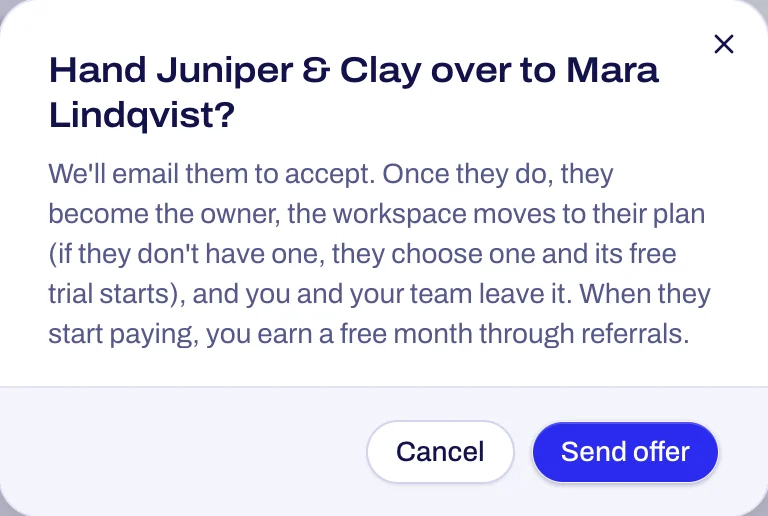
While Linkbase's referral program is running, the handover dialog also says whether you'd earn a reward when the client makes their first payment. Hand a workspace over to a client covers every case.
If you'll keep looking after it
Some clients want to own the page and still pay you to run it. They invite you back to the workspace, and your seat is on their plan now, not yours. That's a different engagement, so price it as one.
Pricing and scoping the work so it pays
You'll see no figures here, because your market sets them. What you can control is the structure, and the structure decides whether this work pays or quietly eats your margin.
Decide who owns the account
| You own the workspace | The client owns it and invites you | |
|---|---|---|
| Who pays Linkbase | You, recovered in your fee | The client, directly |
| Getting started | Fast: create the workspace and build | The client signs up first |
| What you can run | Your team, All workspaces, reports, data exports | Whatever role the client gives you |
| When the work ends | You hand the workspace over | The client removes you |
| Suits | Retainers, and many smaller clients | Larger clients with procurement rules, one-off builds |
In a client-owned workspace, ask for the admin role if you'll handle domains, webhooks or scheduled reports, which editors can't touch.
Price the parts, not the hours
Charge setup as a fixed fee, set by what actually takes time: the number of pages and tabs, the languages, the forms, any booking types, and a custom domain. Charge care monthly, defined by a change allowance and a response time. Charge campaigns per sprint. Billing by the hour for a page that takes minutes to update punishes you for getting faster at it.
Know what drives your own costs
Your Linkbase bill moves with a few things, so put each in the proposal:
- The plan. Custom domains, badge replacement, scheduled reports and advanced analytics are on Pro and Team plans. The agency team, page-level access and client admins come with the Team plan.
- Seats. Your teammates, plus each client's editors and client admins. The client's viewers are free.
- Workspaces and custom domains. Both count across everything you own, so one plan's allowance is shared by all your clients.
Pricing shows what each plan includes, and the features page lists the rest.
Write down what counts as a change
Scope creep in this work rarely arrives as one big request. It arrives as forty small ones. Define the terms:
- A change: editing text, swapping a link, adding or removing a block, updating hours.
- A project: a new page, a new language, a new tab, a redesign.
- The channel: requests arrive one way, such as one email address, not across three chat apps.
- The response time: for example, within one working day.
When not to price it separately
Say you run a social agency in Manila that manages creators. Their pages change with every post and every brand deal, and the page is part of the job you already do. Pricing it as its own line would just invite haggling. Fold it into the social retainer, name it in the deliverables, and keep the handover clause anyway.
Frequently asked questions
Should the agency or the client own the Linkbase account?
Either works. If you own the workspace, you control access, reporting and exports, and pay for the plan inside your fee, then hand it over when the work ends. If the client owns it, they pay Linkbase directly and invite you in with the role they choose. Retainers usually suit the first, and one-off builds the second.
Do a client's viewers cost anything?
No. Viewers in a client's workspace are free and take no seat. Client admins and editors each take a seat on the owner's plan.
Can a client admin see my other clients?
No. People reach only the workspaces they're members of. A client admin sees their own workspace and nothing else of yours.
Can I put my agency's logo on client pages?
On Pro and Team plans, you can replace the Linkbase badge at the foot of a page with a logo, set page by page. You can credit your agency on one client's page and show only the client's own logo on another.
Can I resell Linkbase under my agency's brand?
No. Replacing the badge changes what visitors see, but anyone who signs in to the dashboard, including the client's people, is using Linkbase. You bill the client for your work, and whoever owns the account pays for the plan.
What does the client keep when we part ways?
Everything in the workspace: the pages, their addresses, the audience list, the analytics, the domains and the settings, along with the client's own people. Once they accept the handover, the workspace runs on their plan and your team's access ends.