Link in bio for small business: a page that brings customers in
Build a small business page that answers customers first: hours that stay right, prices, bookings, honest reviews, QR codes in the shop and a weekly routine.
7 capítulos20 min de lectura

It's 5:40 on a Saturday, and a man is standing outside your shop with a key he needs copied before the weekend. The sign on your door lists weekday hours only. He finds your profile, taps the link in your bio, and gets your logo, a button to your Facebook page and another that says "Website." Nothing tells him whether you close at six. He walks to the chain store two streets away.
You never hear about him, and that's the problem. A small business can lose customers this way every week, quietly, at the exact moment someone was ready to come in. The fix is rarely a new website. It's one page that answers what people need to know before they set out: are you open, where exactly are you, what do you sell and for how much, can they book, can they trust you, and how do they reach a person.
This guide builds that page, chapter by chapter, for shops, cafés, studios and services, and ends with a routine of a quarter of an hour a week that keeps it right. The businesses in the examples are hypothetical. For the basics of any link-in-bio page, start with What is a link in bio?. This guide is about what changes when the visitor might walk through your door.
What you'll learn
- Find out what your customers ask before they visit or buy, and build the page in that order
- Keep hours, address and contact details right, through holidays and for visitors in other time zones
- Show menus, price lists and products clearly, without pretending to be an online store
- Take bookings and inquiries without a day of back-and-forth messages
- Show reviews honestly, and give a first-time customer good reasons to trust you
- Get found from your shop window, your own domain and search, then keep it all right in 15 minutes a week
What customers check before they visit or buy
People deciding whether to come to you, or buy from you, ask some version of six questions:
- Are you open, now or when I can come?
- Where are you, exactly?
- What do you sell, and what does it cost?
- Can I book, order or reserve?
- Are you any good?
- How do I reach a person?
Every small business page needs an answer to all six. What changes from trade to trade is the order.
| Business | The question that comes first | What goes at the top |
|---|---|---|
| Café or bakery | Are you open? | Opening hours, then today's menu |
| Plumber or electrician | Can you come, and how soon? | Call and message buttons, then a quote form |
| Salon or studio | When can I get in? | Booking, then the price list |
| Boutique or gift shop | Do you have what I want? | New arrivals, then hours and the map |
| Repair shop | What will it cost? | The price list, then how to drop off |
Count the questions for a week
The table is a starting point. Your own customers will tell you the real order if you write down what they ask. For one week, keep a note on your phone or a sheet by the register, and make a mark beside a question each time someone asks it, in messages, on the phone or at the counter.
Say you run a bike workshop in Utrecht. By Saturday the sheet reads: can you fix it today (12), how much is a service (9), are you open on Monday (7), do you sell secondhand bikes (5), where do I leave the bike if you're closed (2). That's your page, almost line by line:
- Opening hours, with a note that same-day repairs depend on how busy the day is.
- A message button, "Ask if we can fix it today", that opens WhatsApp with the first message ready to finish.
- A price list for services, from a puncture to a full overhaul.
- Product cards for the secondhand bikes in stock this week.
- A FAQ that answers the after-hours drop-off question.
- A map, with the entrance described.
Two visitors, one page
Two kinds of people open a small business page. The regular already knows you and wants today's answer: are you open, what's the special, is it back in stock. The first-timer has never been in and wants to know what you are and whether you're worth the trip. Give the top of the page to the regular, and the header to the first-timer.
A bio line written for strangers
The line under your name is the first-timer's answer, so say what you are, where, and when if it helps: "Repairs, servicing and secondhand bikes. Oudegracht, open Tuesday to Saturday." A slogan such as "Passion on two wheels" gives a stranger nothing to act on.
You don't have to start from a blank page. The templates include starting points for cafés, trades, studios, health practices and more, each laid out for the questions that kind of business gets.
Hours, location and contact that are always right
Wrong hours cost more than missing ones. A customer who finds no hours sends you a message. A customer who finds the wrong hours makes the trip, finds the shutter down, and remembers.
Opening hours that say whether you're open now
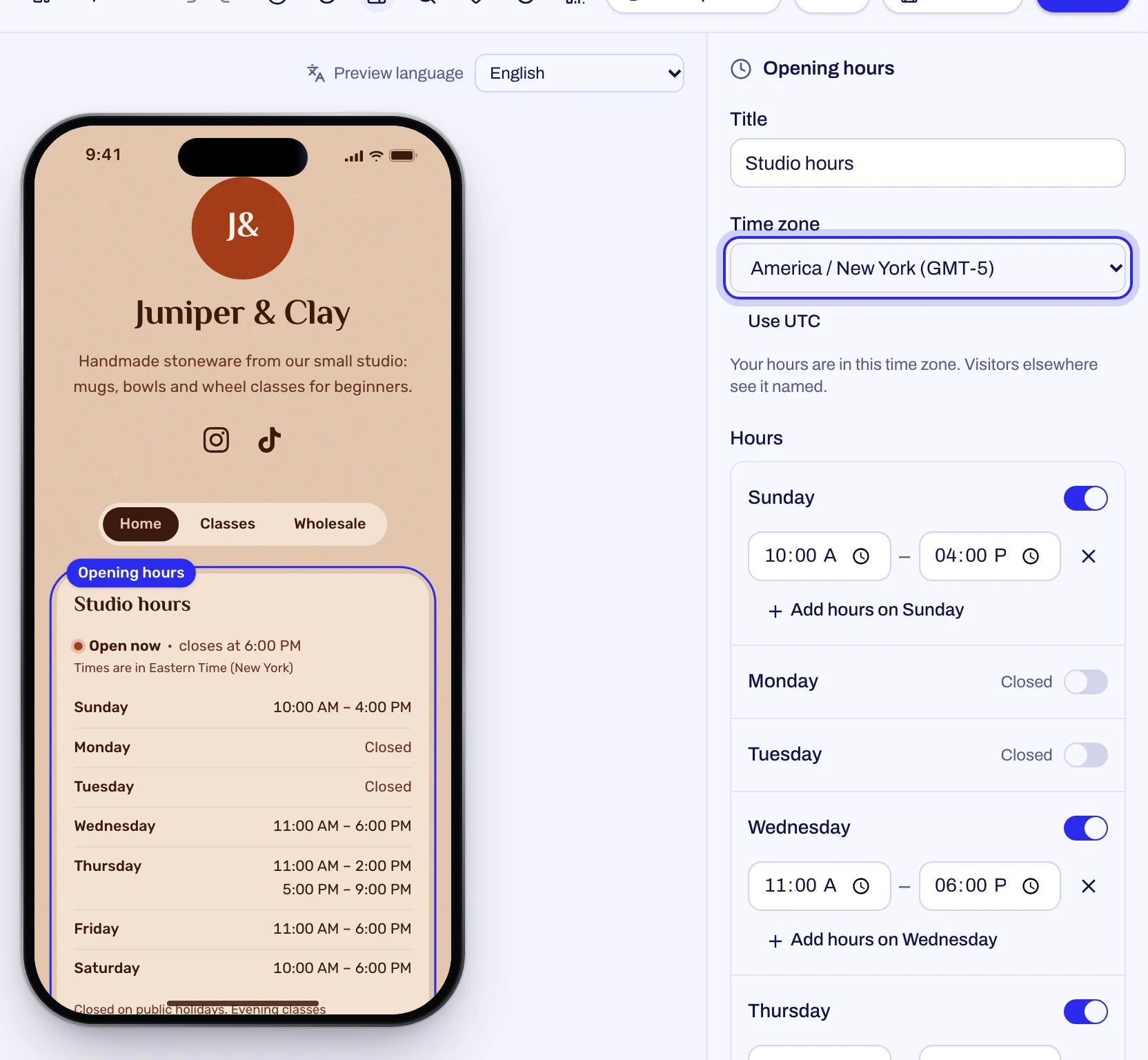
The opening hours block holds each day's hours, with up to four ranges a day for a lunch break or a split service, and hours that run past midnight. Above the grid, it tells visitors the answer in words, such as "Open now · closes at 6:00 PM", worked out at the moment they look.
Two settings matter:
- The time zone. You set your hours in your business's time zone, and visitors elsewhere see that zone named beside them, so a tourist planning from home isn't misled by their own clock.
- The note. A line for what the grid can't say: "Closed on public holidays" or "The kitchen closes 30 minutes before we do."
Holidays and closures
Say you run a bakery in Montreal and close for the last week of July. Write the closure as dates, not as "next week", because people read your page days after you wrote it: "Closed July 22 to 28, back on the 29th." Put it in the note on your opening hours, then on your map listings, then on the door.
On the Pro and Team plans, you can also add a warning callout at the top of the page and schedule it to appear a week before the closure and disappear the day you reopen, so it can't outstay the holiday. Show a block only between two dates explains how.
An address people can follow
The map block shows your place's name and address, and opens it in Apple Maps, Google Maps or OpenStreetMap. Paste a map link or coordinates as its pin, so the map marks your door rather than the middle of the street. Keep the address field for the address itself, and put what a map can't show in a short text block beneath it:
- "Entrance on Rue Saint-Viateur, beside the flower shop"
- "Step-free access through the side door"
- "Free parking behind the building after 6 PM"
Contact that reaches a person
Offer the channels you answer, and only those. A button that opens an inbox nobody checks is worse than no button.
- Message buttons open WhatsApp, Telegram or Signal, a text, a call or an email. For WhatsApp, a text or an email, you can write the first message for the customer, so it arrives with context: "Hi, I'd like to order a cake for Saturday. Is there still time?"
- A contact card holds your name, phone, email and address, with Save contact, so a customer can keep you in their phone for next time. Get saved in their phone with a save contact button covers what to put on it.
- For LINE, KakaoTalk, Zalo or Messenger, use an ordinary link button with your chat link.
Then say when you reply, in a line of text above the buttons: "We answer messages Tuesday to Saturday, 8 to 4." It turns a quiet Monday from rude into expected.
Your hours live in more places than your page: your map listings, review sites, your phone greeting and the door. When they disagree, nobody knows which to believe. Change them all on the same day.
Showing what you sell: menus, price lists and products
Hidden prices turn every visitor into a message you have to answer, and some of those messages are never sent. Show what you sell and what it costs, in a form that reads on a phone.
Choose the block that fits how you sell
| Block | Best for | What visitors tap |
|---|---|---|
| Menu | Many items in sections, with prices and dietary tags | Nothing: it shows prices only |
| Products | A few items with photos, each with its own buy button | A button to your own checkout, payment link or chat |
| Pricing | Up to three packages side by side, one highlighted | A button for each package |
| Coupon | A code to copy, with an expiry date and a shop link | Copy code, then the shop link |
| File download | A long list that has to stay a document, such as a wine list | The file |
Add a menu or price list and Sell with product cards have the steps.
Price lists for services
The menu block isn't only for food. Its sections and prices work as a price list for any service. Say you run a dog grooming studio in Austin. Make a section for each size of dog, an item for each service, and let the description say what's included: "Bath, blow-dry, nails and ears. About 90 minutes." Where the price depends on the coat, enter the starting price and say so in the description ("Starting price. Thick or matted coats take longer and cost more."), so nobody is surprised at pickup.
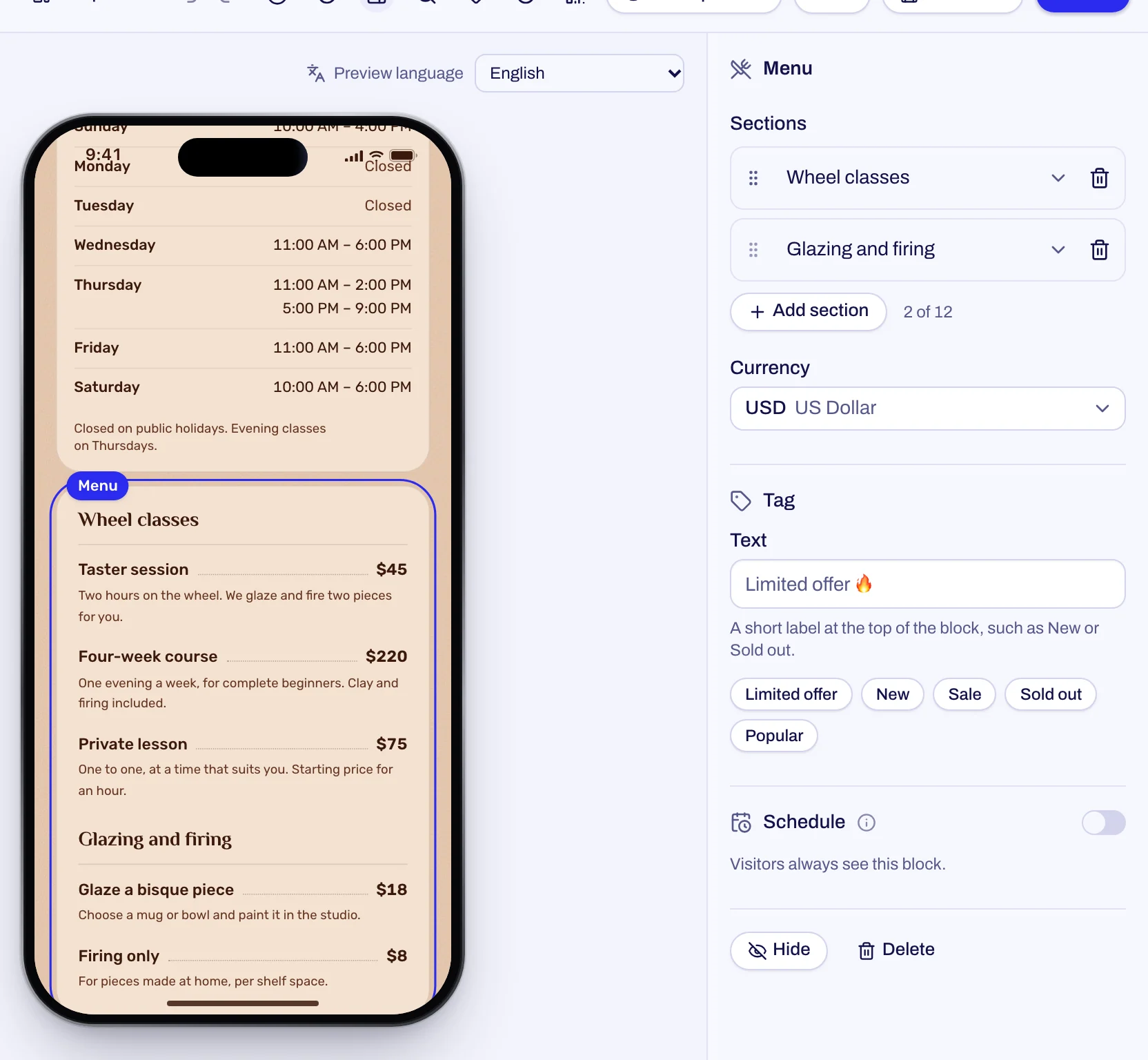
For bundles, a pricing table of up to three packages makes the choice easier than a long list. The highlighted package carries a "Most popular" badge unless you give it one of your own, so if it isn't literally your most popular, write something true, such as "Best for a first visit". A checklist block underneath can spell out what each package includes and what it doesn't.
Menus for food
For a café or restaurant, a menu block beats a PDF on a phone: it fits the screen, and changing one price takes a minute instead of a new file. Use dietary tags (vegetarian, vegan, gluten-free, spicy) only where you can stand behind them, and remember that the tags aren't allergen information. Menu, hours and bookings: what diners check before they visit goes through a restaurant page in depth.
Products, without pretending to be a store
Product cards show a photo, a name, a price and a buy button, with an optional badge ("New", "Last few") and an earlier price struck through for a sale. You can rename the button, and it opens whatever address you give it: a product in your online store, a payment link from your payment provider, or a chat to order in.
Say you make candles in Cape Town and sell about a dozen scents. Six product cards hold this season's best sellers, each opening that scent in your online shop, and a link underneath, "See every scent", opens the whole shop. The page does the showing, and the shop does the selling.
Linkbase never handles the money or takes a cut of your sales, on any plan. It also has no cart, no stock levels and no shipping rates. If you sell hundreds of items, or need stock counts that update themselves, run a proper online store and use the page as the doorway to its best parts. How payments work on Linkbase sets out what your payment provider handles.
Prices people read correctly
The menu, products and pricing blocks each have their own currency, and prices are written the way the page's language writes them. With the page set to each visitor's language, the default, every visitor reads prices in their own format. Changing a block's currency doesn't convert the amounts, so retype the prices if you switch.
Taking bookings and inquiries
Every request that arrives as "hi, how much?" costs a conversation before it's even a request. The page's job is to collect it in one go, with the details you need to say yes.
Match each request to the right tool
| The customer wants to | Use | Why |
|---|---|---|
| Book a set length of time with you | The booking block, on the Pro and Team plans | They pick a free slot, and nobody confirms by hand |
| Ask for a job that needs details | A form | You get the facts before you quote |
| Ask a quick question | Message buttons, with the first message written | The answer takes one reply |
| Ask for something made to order | A form, then your payment link once you agree | You need the details before you can name a price |
Bookings that run themselves
On the Pro and Team plans, the booking block lets visitors book time with you on the page. You set up booking types, each from 15 to 240 minutes long, and your weekly hours, then the rules that protect your day: minimum notice, how far ahead people can book, a buffer before and after each booking, a daily limit, and date overrides for days off. Visitors see open times in their own time zone, and you both get a confirmation email. Theirs comes with a calendar invite and links to reschedule or cancel.
Say you run a one-chair barbershop in Nairobi. Two booking types, "Haircut, 30 minutes" and "Cut and beard trim, 45 minutes", a ten-minute buffer after each to sweep up, and an hour's minimum notice, so nobody books a slot that started five minutes ago. Walk-ins still fill the gaps.
Two limits to know before you rely on it:
- One booking per time slot, for the whole page. That suits one person's diary, like the barber's. A salon with four stylists working at once needs a booking system built for teams, linked from the page.
- No payment is taken. Write what it costs and how to pay in the booking type's price field, such as "Paid at the shop, cash or card". To take a deposit, put a button with your own deposit payment link beside the booking block.
Set up bookings and Set your availability and booking rules have every step.
Inquiry forms that get the facts first
When a job needs details before you can quote, a form saves the back-and-forth. Forms have 12 field types, from dates and numbers to dropdowns, checkboxes and a consent checkbox, so each question takes the right kind of answer.
Say you run a catering company in Dubai. Your inquiry form asks for:
- The event date (a date field, required)
- The number of guests (a number field, required)
- The kind of event: wedding, company event, private dinner or other (a dropdown)
- Dietary needs: vegetarian, vegan, gluten-free, nut allergies (checkboxes)
- The venue or area (text)
- A phone number and an email address
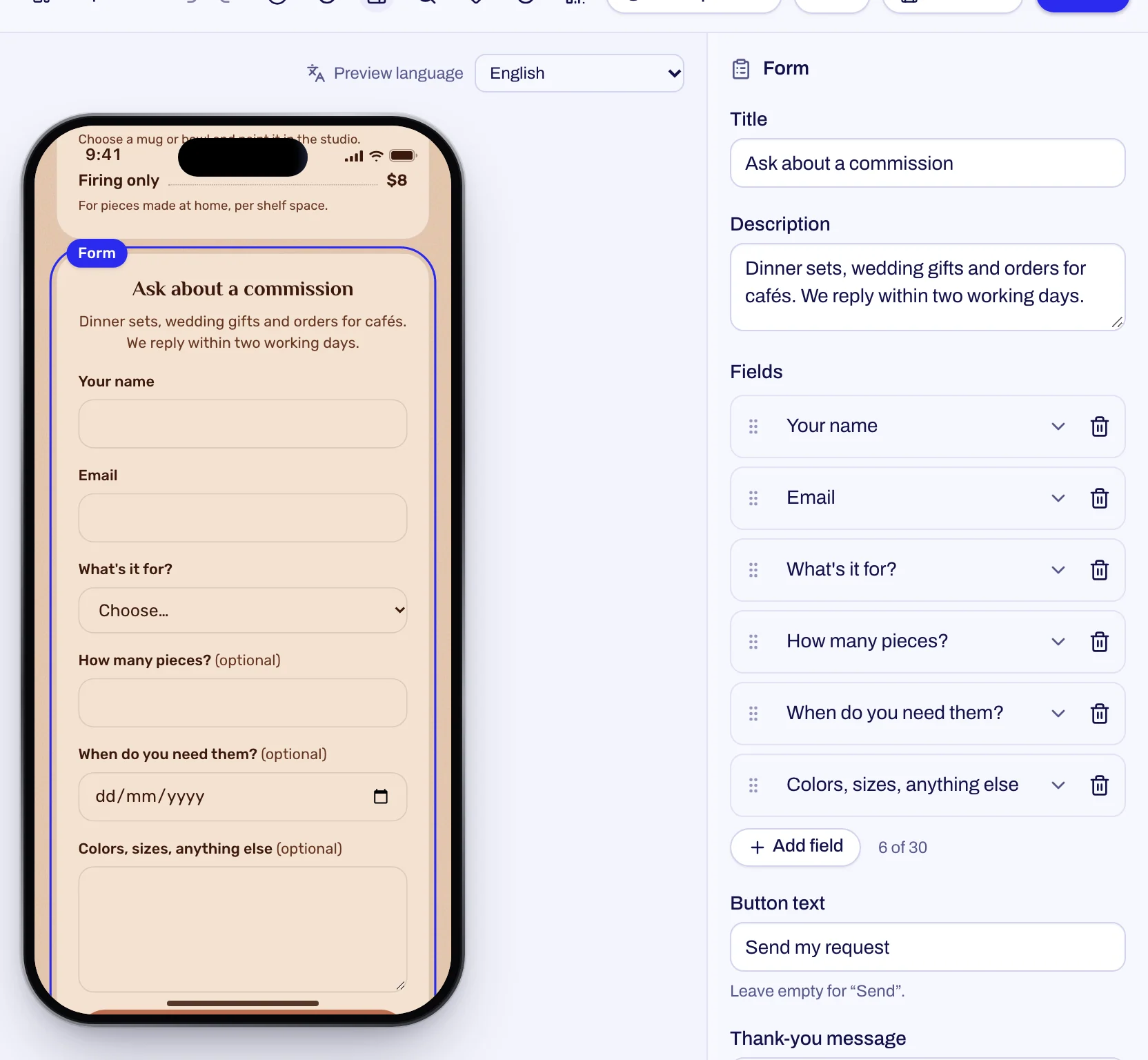
Each reply lands in your dashboard, and the workspace's owner gets an email with the answers as it arrives. To send replies on to a spreadsheet, a team chat or another tool, connect a webhook. Forms can't take file uploads, so if you need photos of a venue or a broken part, ask for them by message once you've replied. Build a form and Get an email for each form reply have the steps, and Collect orders, inquiries and RSVPs covers which fields to require.
Quick questions, answered once
A FAQ block near your contact buttons answers the questions you get every day before anyone sends them: parking, payment methods, whether you take walk-ins, how long a repair takes. Each answer is a message you no longer type.
Reviews and trust
A first-time customer is deciding whether you're real, whether you're good, and whether you'll treat them fairly if something goes wrong. A page can answer all three, as long as everything on it is true.
Reviews you can stand behind
The reviews block shows reviews you add yourself, each with a star rating, the reviewer's name, the date, the text and where it was posted, such as "Google", plus an average and a breakdown by stars. It doesn't import reviews from anywhere, so you choose them, and that choice is where honesty comes in. The average covers only the reviews you added, which is why a wall of five stars says less than you'd hope.
Choose reviews that settle a specific doubt, not the most glowing ones. Say you run a phone repair shop in Brisbane. Your customers worry about their data, the wait and the cost, so the reviews worth showing are the ones that speak to those worries: "Screen replaced while I had a coffee, and everything was still on the phone." Quote every review exactly, and add a button, "Read all our reviews", that opens your full reviews on your map listing so anyone can check. Show ratings honestly goes deeper.
Testimonials, with permission
Words from a customer who didn't post a public review need their permission before they go on your page. A short form with a consent checkbox collects the words and the permission in one step. Collect and show client testimonials with consent and care explains how to ask.
Rules on reviews and endorsements differ between countries, and many treat fake reviews, or reviews you rewarded without saying so, as misleading advertising. This isn't legal advice: check the consumer protection rules where you trade.
Proof that isn't a review
- Faces. A team block with photos, names and roles shows who'll serve the customer. Read Put faces to your business with a meet the team section.
- The work itself. A before-and-after block, which visitors drag to compare, suits cleaners, repairers and decorators. A gallery with captions suits makers.
- Plain policies. Returns, refunds, cancellations and warranties belong in the FAQ, in your own words, before anyone has to ask.
- Numbers you can prove. The stats block shows two to four big numbers you enter, such as years in business. Use it only for numbers you'd happily explain to a skeptic.
The verified badge
On the Pro and Team plans, a verified badge beside your name tells visitors the page really belongs to your business. Linkbase staff verify a page on request, from who it represents and links that prove it, and a custom domain you've connected verifies its page too. Get the verified badge has the steps.
What undoes trust
A broken link, a sale that ended in March, or prices that don't match the counter tell a visitor that nobody looks after the page, and they wonder what else nobody looks after. Page health checks every link daily and flags the broken ones. The routine in the last chapter catches the rest.
Getting found: QR codes in the shop, your own domain, search
The page can only bring customers in if they find it. For a local business, that happens in three places: on your premises, on everything you print or say aloud, and in search.
QR codes where customers already stand
People stand in front of your window after closing time, wait at your counter, and carry your bag home. A QR code in each of those places opens your page with no typing, and the camera on most phones reads one without a separate app.
Your page's QR code takes your colors and logo, downloads as an SVG for print or a PNG for screens, and counts every scan. It opens your page by default, so when the menu or the hours change, you edit the page, and every printed code already shows the change.
Say you run a café in Wellington. The places worth a code:
- The front window, at eye height, with a line that says what the scan opens: "Scan for today's hours and the menu." It keeps working after you lock up.
- The counter, beside the register: "Scan for this week's specials and catering."
- Receipts and takeout bags, so the customer who loved the soup can find you again.
A page has one QR code, and it opens the page's main address unless you choose a tab or, on Pro and Team, another web address for it under Where scans go, which you can change at any time without reprinting. On the Pro and Team plans, every short link can have a QR code of its own. That lets the window and the bags carry different codes that count their scans separately, and lets one code open a tab, such as catering, while the others open the page. How many codes you get depends on your plan, so check pricing. Print one at its real size and test it with two phones before printing more. Create and style a QR code and Track scans and change where a QR code points have the details.
Your own domain
On the Pro and Team plans, you can show your page at a domain you own, with HTTPS set up for you. It reads as yours on a shop sign or a van, it's easier to say over the phone, and it verifies your page. If you already have a website at your main domain, use a subdomain such as links.yourshop.com, so the website stays where it is. If you don't, the page can take the main domain itself. Connect your own domain walks through the records to add.
Search: say what you are, and where
Searches for a kind of business nearby usually show a map with listings before the ordinary results, so your map listings matter at least as much as your page. Keep their hours identical to your page's. Where a listing has a website field, your page's address or your own domain can go there, but check each listing's rules for what it accepts.
For the page itself, open Search & sharing:
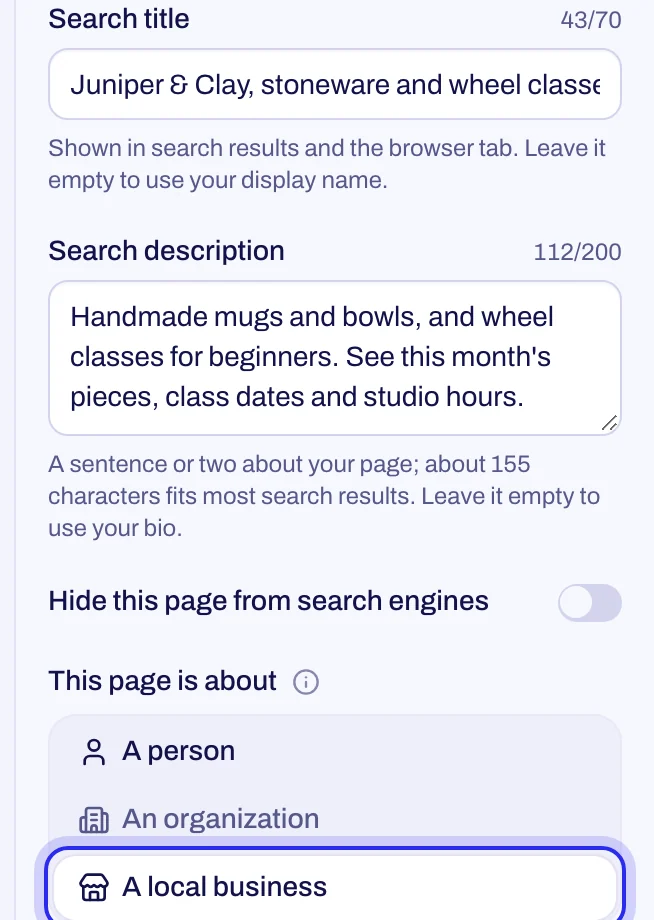
- Search title: your name, what you do and where, within about 60 characters so results don't cut it short: "Cuba Street Café, breakfast and lunch in Wellington".
- Search description: a reason to visit, within about 155 characters, saying what's on the page and who it's for.
- This page is about: choose A local business. Linkbase then describes your page to search engines as a local business, with the address and opening hours from your map and opening hours blocks. Questions and answers in a FAQ block are described too.
- Share image: 1200 × 630 pixels, for the card people see when they send your page to a friend.
Search engines decide what they show, and nothing guarantees a place in the results. What you control is that everything they read is clear, consistent and true. Set your search title, description and share image has the steps.
A weekly routine that keeps the page working
A small business page doesn't need much attention, but it needs it regularly. A quarter of an hour on Monday morning catches most of what goes wrong before a customer finds it.
The Monday fifteen minutes
Every Monday, Linkbase emails the workspace's owner a summary of the past week's views, visitors and clicks, with the top links and where visitors came from. Make it the start of the routine. Say you run a deli in Buenos Aires:
- Read the summary. Did the button at the top get taps? Did anything jump, or fall to nothing? A link that suddenly gets no clicks may be broken. A five-minute Monday routine with your weekly analytics email shows what to look for.
- Look at the week ahead. A public holiday, a closure, a wine tasting on Thursday: update the hours note, add the tasting to the events block, and on the Pro and Team plans, schedule anything with an end date.
- Change the top. This week's special, the new batch of empanadas, the holiday hours. Take down whatever held the spot last week.
- Clear the inbox. Answer form replies and look over this week's bookings, both under Audience.
- Open page health. Fix anything it flags, publish, then select Check links now to confirm it's gone.
- Answer one repeated question. If two customers asked the same thing last week, add it to the FAQ.
Some of the routine looks after itself. The coupon block hides itself once its code expires, and past events drop off the events block on their own.
Once a month, once a season
- Monthly: open the full analytics, compare the month with the one before, and make one change from what you see. Check every price on the page against the price at the counter.
- Each season: new photos, the new menu or price list, and a walk past every printed QR code to check it's still there, still clean and still scans.
- Before your busiest days: open the page from your own bio, on your own phone, as a customer would.
Who looks after it
Give the page one owner, even in a business of three. If someone else helps, invite them to your workspace as an editor: seats for people besides you come with the Team plan, and viewers are free on every plan. Before a big change goes live, a private draft preview link lets the owner check it, and version history keeps every published version, so a mistake is one restore away.
Put the Monday routine in your calendar as a repeating event, with the six steps in its notes. A routine with a time slot survives a busy week far better than a good intention.
Frequently asked questions
Do I need a website if I have a link-in-bio page?
Not always. A page with your hours, map, prices, contact buttons and bookings covers what local customers need before a visit. You need a website or online store when you sell many products online, need a cart, stock or shipping, or want long pages of content. Plenty of businesses keep both, with the page as the doorway from social media and print.
Can customers pay on my page?
Not on the page itself. Buy, tip and deposit buttons open your own checkout, payment link or chat, and customers pay you there. Linkbase never handles the money and takes no cut of your sales.
Can I show my Google reviews automatically?
No. The reviews block shows reviews you add yourself, each with its rating, author, date and where it was posted. Add the ones that answer real doubts, quote them exactly, and link to your full reviews so anyone can check.
Can several staff take bookings at the same time?
Not on one page. The booking block takes one booking per time slot for the whole page, which suits one person's diary. If several staff see clients at once, use a booking system built for teams and link to it from your page.
Should I put a QR code in my shop window?
Yes, if your hours, menu or bookings matter to someone standing outside, and after closing time they usually do. Put it at eye height, add a line that says what the scan opens, and test it at its printed size with two phones.
How much does it cost?
You can build your page free. It goes live when you start a free trial, with no card needed, or subscribe. Bookings, your own domain and short links are on the Pro and Team plans. Compare the plans on the pricing page.

